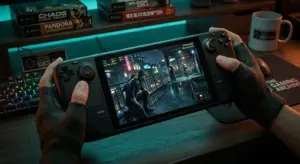
Why This Happens?
The primary reason Splinter Cell Conviction is labeled as “Unsupported” or “Borked” on Steam Deck is due to the outdated version of the Ubisoft launcher bundled with the game and specific Windows-only video codecs that standard Proton versions struggle to translate. These issues typically lead to a “Black Screen” on launch or a complete system hang when the game tries to communicate with Ubisoft’s servers.
The Fix: Step-by-Step Guide
To bypass these crashes and ensure a stable frame rate, we will use Proton GE (GloriousEggroll). This custom compatibility layer includes specific patches and media foundations that aren’t available in the official Valve versions of Proton.
- Step 1: Install ProtonUp-Qt Switch your Steam Deck to Desktop Mode. Open the “Discover” store, search for ProtonUp-Qt, and install it.
- Step 2: Download the Latest Proton GE Open ProtonUp-Qt, click “Add version,” select “Proton-GE” from the dropdown, and install the latest available version.
- Step 3: Force Compatibility Mode Return to Gaming Mode. Go to the game’s Properties > Compatibility. Check “Force the use of a specific Steam Play compatibility tool” and select GE-Proton.
- Step 4: Launcher Workaround On the first launch, let the Ubisoft Connect launcher update. If it hangs, simply restart the game; Proton GE will handle the next attempt much better.
Optimization Settings for Steam Deck
To achieve a stable 60 FPS and extend your battery life, use these recommended in-game settings:
| Setting | Recommended Value |
|---|---|
| Resolution | 1280×800 |
| Graphics Quality | Medium |
| Shadow Quality | Low |
| Anti-Aliasing | Off |
| Texture Quality | High |
Pro Tip: Limit your Steam Deck Refresh Rate to 60Hz/60FPS via the Quick Access Menu for the smoothest experience.
Conclusion
With the power of Proton GE, Sam Fisher’s journey becomes fully playable in the palm of your hands. This setup fixes the launcher crashes and ensures the cinematic interludes play without a hitch.
Did this guide help you get back into the shadows, or are you still facing launcher issues? Let us know in the comments if you have any other tips for Splinter Cell Conviction!



Comments