Introduction
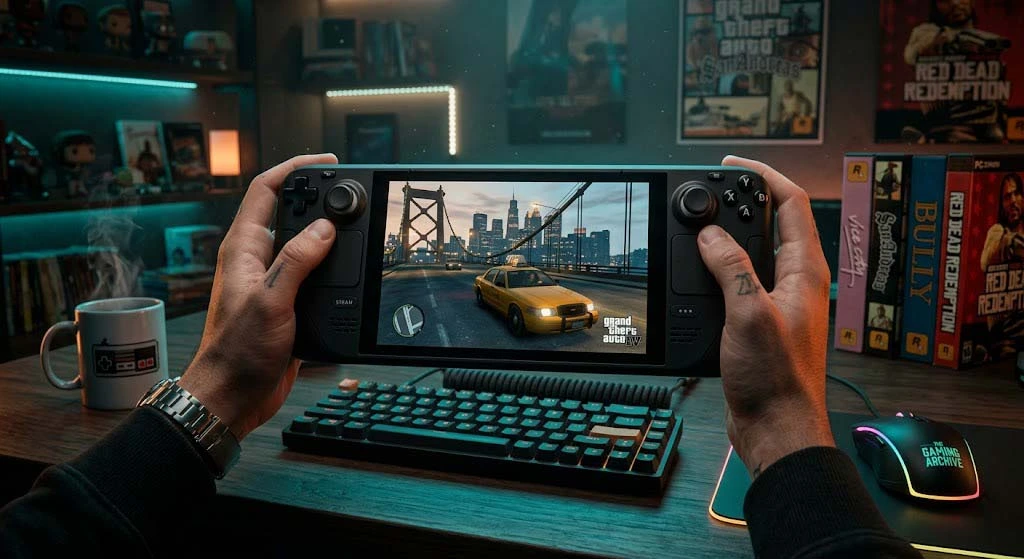
There’s nothing more frustrating than booting up a masterpiece like Grand Theft Auto IV, only to find it stuttering, lagging, and performing worse than it did back in 2008. Despite being one of the most immersive open-world titles ever created, the PC port of GTA IV remains notoriously unoptimized. If you are trying to enjoy Liberty City on a modern Windows 11 rig and finding the experience unplayable due to micro-stutters, don’t give up. The game is absolutely worth the effort, and the fix is simpler than you think.
Why This Happens?
The primary reason for Grand Theft Auto IV‘s poor performance on modern systems is its outdated reliance on DirectX 9. Modern GPUs (especially from the RTX or RX series) and Windows 11 handle DX9 instructions through an emulation layer that often causes massive frame time inconsistencies and CPU bottlenecks. Furthermore, the game’s original engine fails to recognize modern VRAM amounts, leading to artificial performance caps and “hitching” during high-speed driving.
The Fix: Step-by-Step Guide
To bridge the gap between 2008 technology and your modern hardware, we will use DXVK. This tool acts as a translation layer that converts the game’s DirectX 9 calls into Vulkan, which modern hardware handles much more efficiently.
Step 1: Download the Files
Go to the official repository (link provided at the end of this article) and download the latest release.
Step 2: Extract the Files
Open the downloaded archive. You will find two folders: x32 and x64. Since GTA IV is a 32-bit application, open the x32 folder.
Step 3: Copy DLLs to Game Directory
Locate these two specific files:
-
d3d9.dlldxgi.dll
Copy them and paste them into your Grand Theft Auto IV main installation folder (where GTAIV.exe is located).
Default Steam path: C:\Program Files (x86)\Steam\steamapps\common\Grand Theft Auto IV\GTAIV
Step 4: Launch and Verify
Launch the game. You might notice a slight stutter for the first 1-2 minutes—this is normal as the Vulkan shader cache is being built. After that, the gameplay should be buttery smooth.
Optimization Settings for Low-End PCs
If you are running Grand Theft Auto IV on a Low-End PC or an Integrated Graphics chip, use these settings alongside the DXVK fix to maintain a stable 60 FPS:
| Setting | Recommended Value |
| Texture Quality | Medium |
| Reflection Quality | Low |
| Shadow Quality | Off or Low |
| View Distance | 25 – 30 |
| Detail Distance | 30 |
| Definition | On |
Conclusion
By implementing the DXVK wrapper, you effectively modernize the way Grand Theft Auto IV communicates with your hardware. This fix resolves the majority of “unexplained” lag on Windows 11.
Did this fix work for you, or are you still seeing performance drops in certain areas of Liberty City? Share your experience in the comments below if you encounter any other issues with Grand Theft Auto IV!
Comments