Why This Happens?
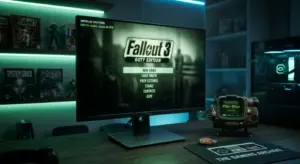
The primary reason Fallout 3 crashes on modern systems is a hard-coded check for older DirectX 9 hardware. Specifically, the game fails to recognize modern Intel HD/UHD Graphics and certain Windows 11 driver structures. When the game engine asks the hardware for a specific capability it doesn’t recognize, it simply gives up and crashes to the desktop. This issue is especially prevalent on laptops and high-end PCs using integrated graphics as a secondary output.
The Fix: Step-by-Step Guide
To bypass this hardware check, we will use the Intel HD Graphics Bypass Package developed by Timeslip. This small tool tricks the game into thinking you are using a compatible Nvidia card (specifically a GeForce 7900 GS), allowing the engine to initialize properly without crashing.
- Step 1: Download the Bypass PackageNavigate to the official community source (link at the bottom) and download the APP version v1.0 archive.
- Step 2: Extract the d3d9.dllOpen the downloaded ZIP file. You only need the file named
d3d9.dll. This is the magic file that handles the hardware translation. - Step 3: Copy to Game DirectoryPaste the
d3d9.dllfile into your Fallout 3 installation folder. This is the same folder whereFallout3.exeis located.Path: SteamLibrary\steamapps\common\Fallout 3 goty - Step 4: Update FalloutPrefs.iniOpen your “Documents\My Games\Fallout3” folder. Open
Fallout.iniwith Notepad, find the linebUseThreadedAI=0and change it to1, then add a new line below it:iNumHWThreads=2. This prevents multi-core engine crashes.
Tool Technical Requirements
| Requirement | Specification |
|---|---|
| APP Processor Needed | Any modern x86 CPU |
| APP RAM Needed | Under 512MB |
| APP GPU Needed | Intel HD/UHD Graphics |
Optimization Settings for Low-End PC
If you are playing on a modern laptop with integrated graphics, use these settings to ensure a stable experience in Fallout 3:
- Resolution: 1600×900 or 1280×720 (High DPI screens can cause UI lag).
- Water Refractions/Reflections: Low or Off.
- Shadow Quality: Low.
- Anti-Aliasing: 2x (or Off for better performance).
Conclusion
By using this bypass, you can finally enjoy Fallout 3 without fearing the dreaded startup crash. It’s a simple fix that has kept this legendary title alive for thousands of wastelanders on Windows 11.
Did this fix work for you? If you’re still encountering errors in the Capital Wasteland, share your experience in the comments below!





Comments