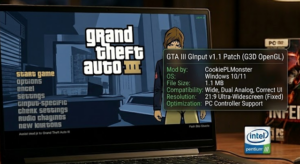
Grand Theft Auto III is a classic that has stood the test of time, but playing it on modern systems like Windows 10 or 11 can lead to frustrating control issues. Despite its age, the game offers an immersive open-world experience that many gamers still cherish. However, the lack of proper control support can hinder your enjoyment. Fortunately, with the right tools, you can enhance your gameplay and enjoy this iconic title without any hassle.
Why this happens?
The control issues in Grand Theft Auto III often stem from compatibility problems with newer operating systems. As technology evolves, older games may struggle to interact with modern hardware and software, leading to:
- Incompatibility with DirectX versions
- Limitations of integrated GPUs
- Outdated input handling methods
These factors can result in unresponsive controls or the inability to use certain input devices effectively.
Step-by-step Fix
To resolve these control issues, you can use Ginput, a tool developed by CookiePLMonster. Follow these steps to get started:
- Download Ginput: Visit the link provided on this page to download the tool. Its safe and official.
- Extract the files: Once downloaded, extract the Ginput files to a folder on your computer.
- Locate the game directory: Find your Grand Theft Auto III installation folder. This is typically located in your Steam library or wherever you installed the game.
- Copy Ginput files: Move the extracted Ginput files into the Grand Theft Auto III directory.
- Configure Ginput: Launch the game and access the Ginput settings to customize your controls according to your preferences.
- Test the controls: Start a new game or load an existing save to ensure that the controls are functioning correctly.
By following these steps, you should be able to enjoy Grand Theft Auto III without any control issues.
Optimization
If youre playing on a low-end PC, consider adjusting the graphics settings to improve performance:
- Set graphics quality to Low or Medium
- Disable shadows and reflections
- Lower the resolution if necessary
These adjustments can help stabilize your FPS and provide a smoother gaming experience.
Conclusion
Now that you have the tools and knowledge to fix control issues in Grand Theft Auto III, we encourage you to share your experiences in the comments. If you encounter any other problems or have tips to improve gameplay, your insights could help fellow gamers enjoy this classic title even more!
Comments